Competition screens and operation
Understand the numbers, then practice starting, recording crossings and checking results.
Timer's basic operations are shared by iOS and Android. Screenshots show the iOS app in English; appearance and labels may differ by OS. Driver Monitor is available on iOS only. The app interface supports Japanese and English.
Check essential information on one screen
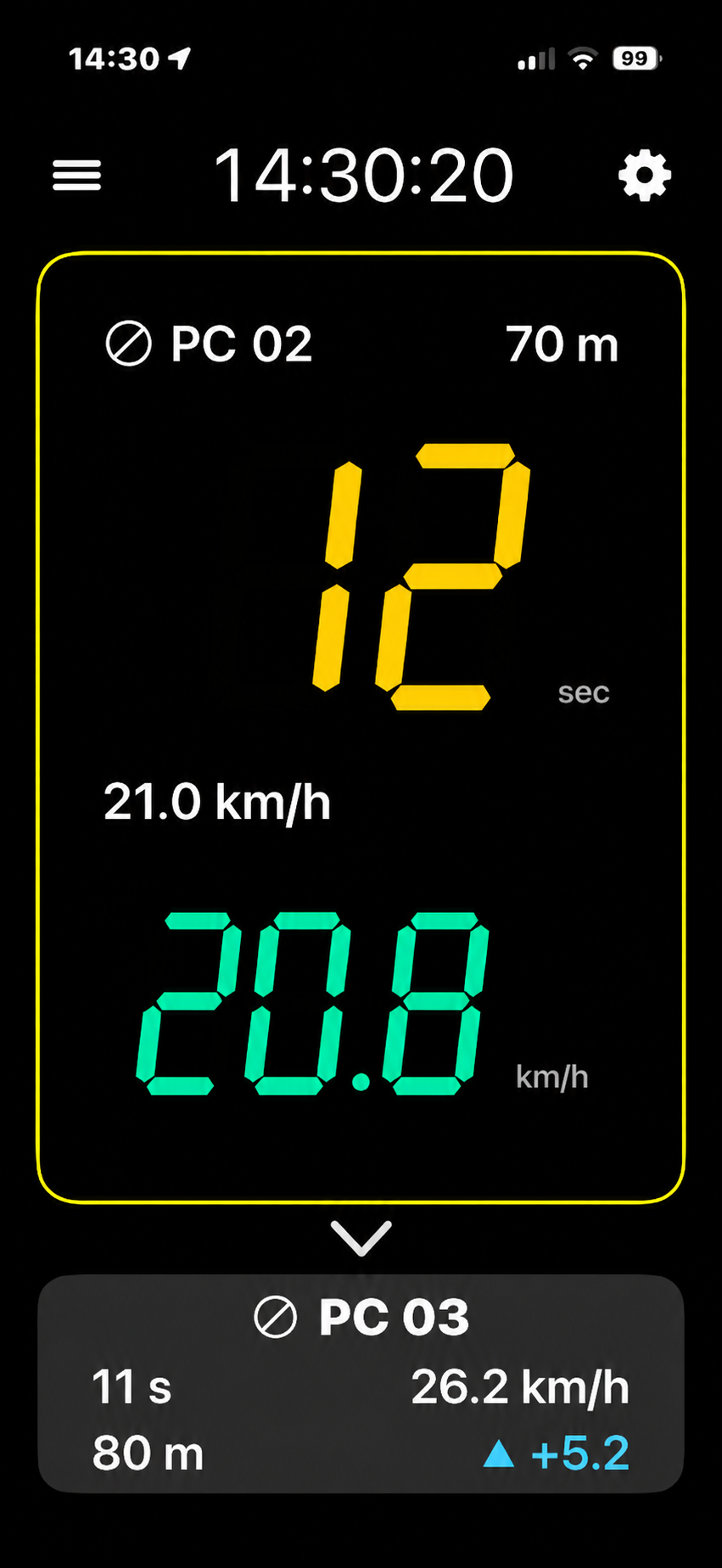
| Current control | “PC 02” in the main card is the control currently being run. |
|---|---|
| Distance | READY shows the PC's set distance. During timing, this becomes GPS-based remaining distance. |
| Remaining time | The countdown runs toward the target time. If no input is made at zero, overtime is shown. |
| Current speed | The large digits show current GPS speed. The smaller “21.0km/h” is the current PC's set average speed. |
| Next control | Preview the next PC's number, time, distance and set average speed. These are separate from the current PC. |
Reading current-speed colors
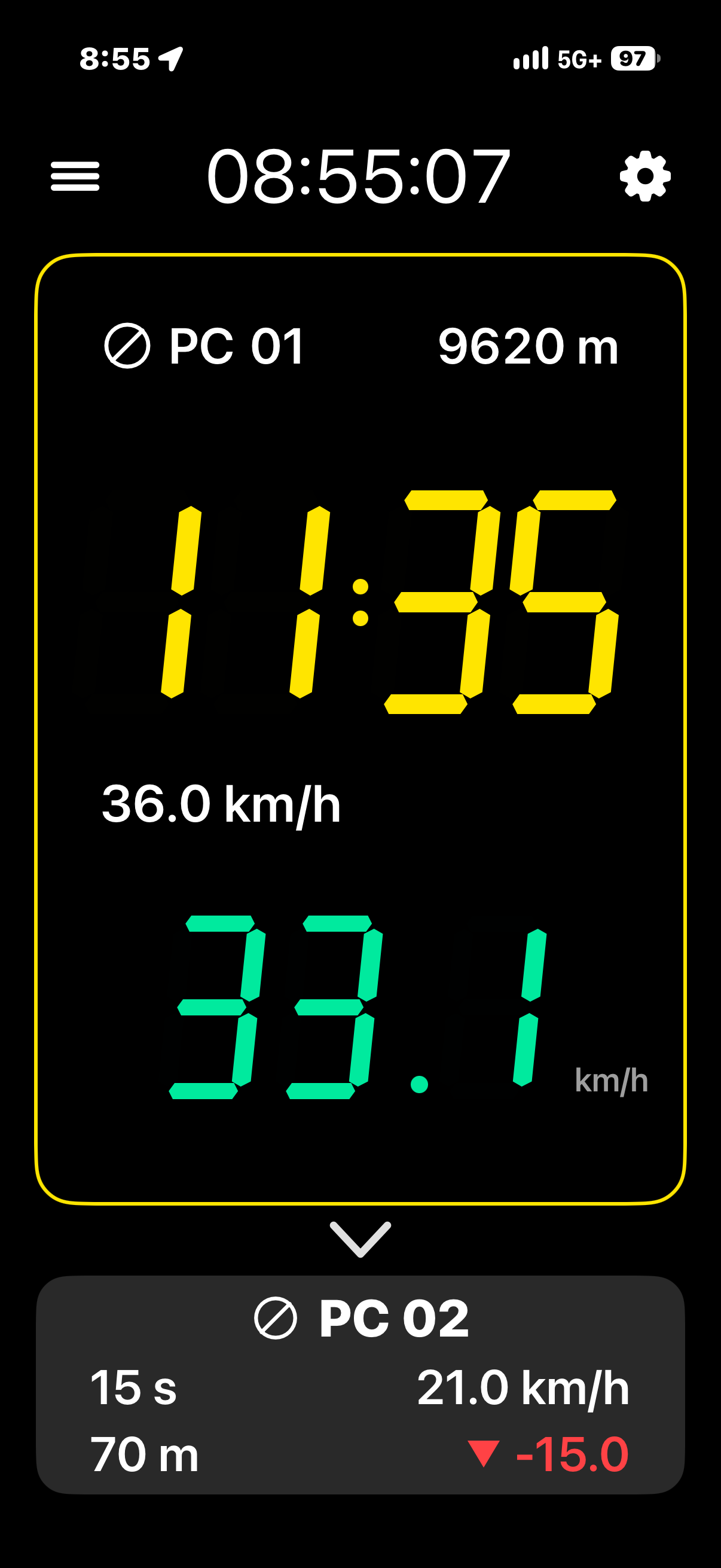
Set 36.0km/h / current 33.1km/h
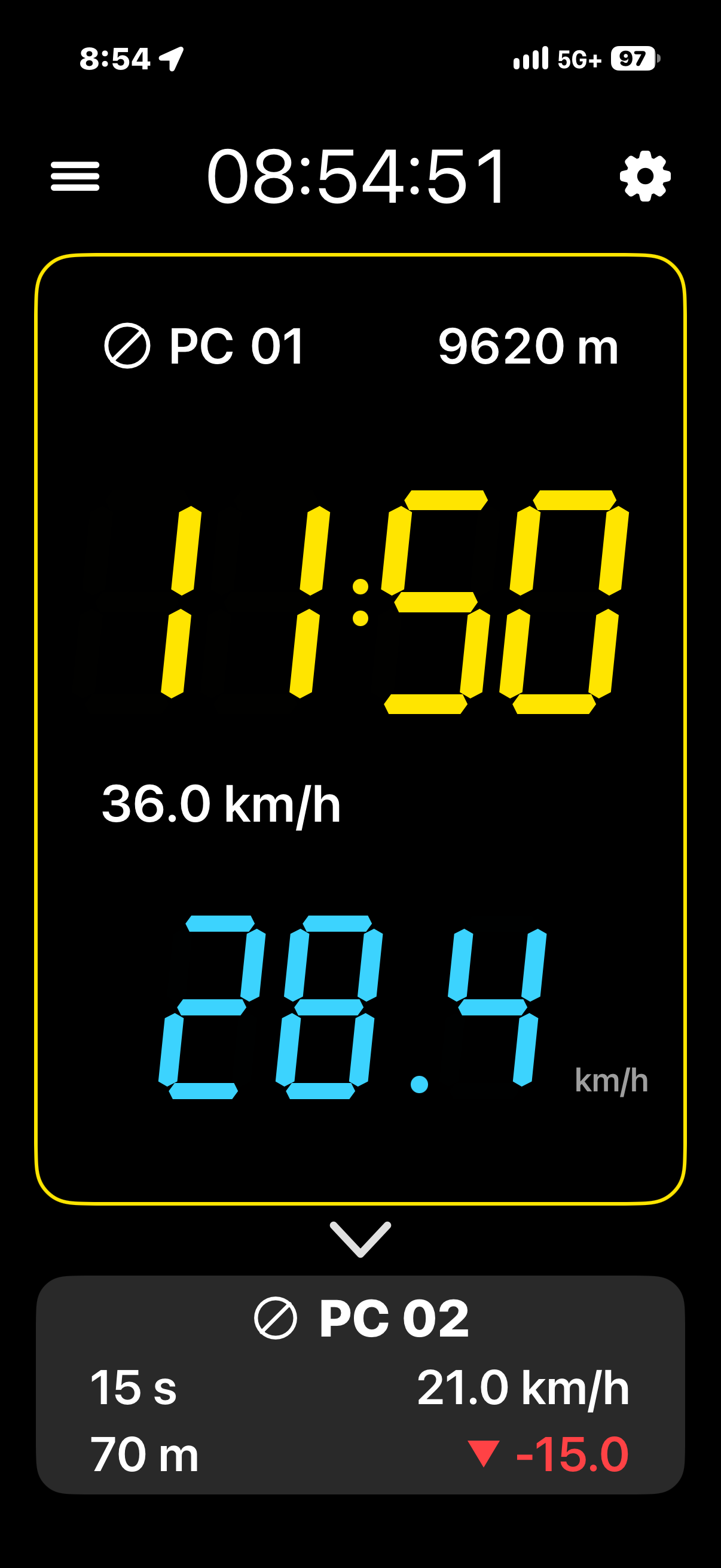
Set 36.0km/h / current 28.4km/h
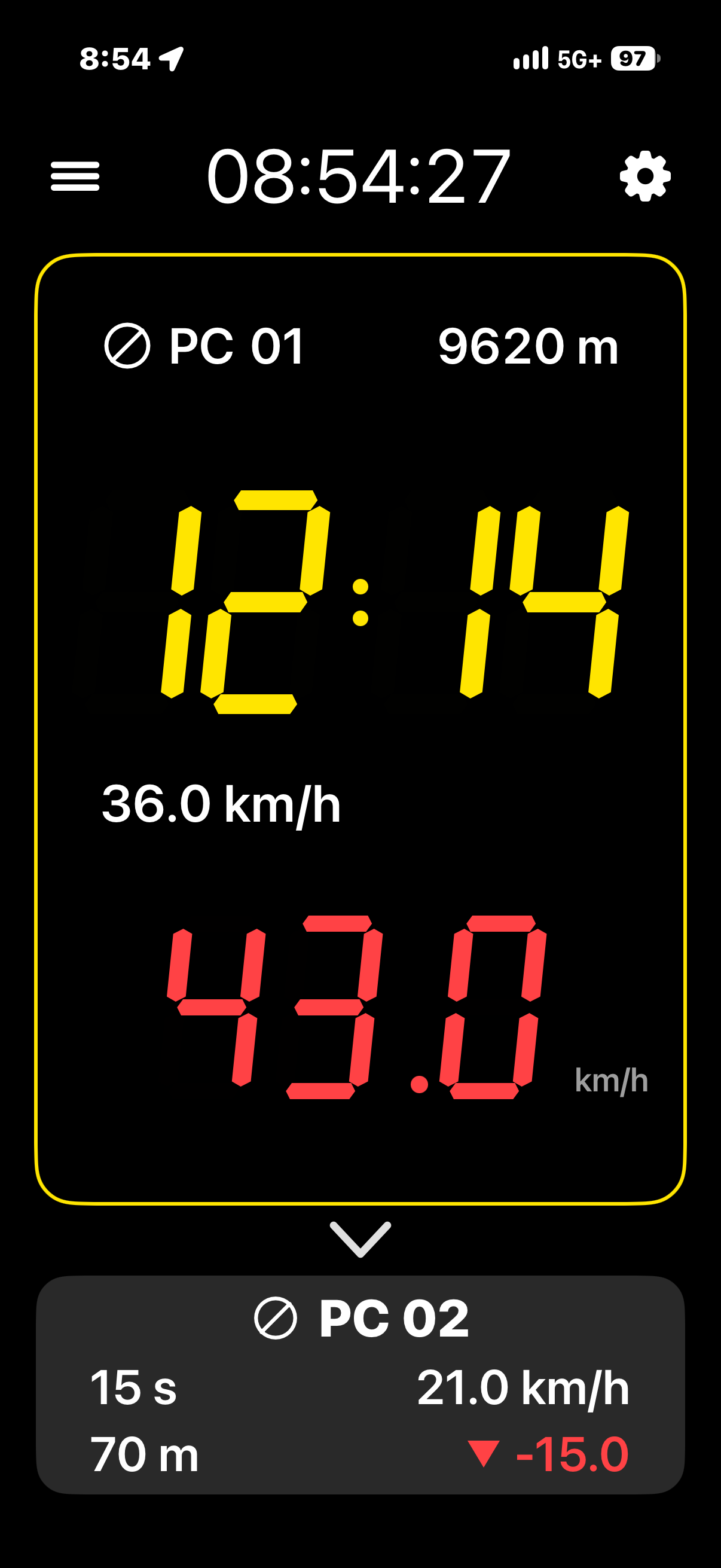
Set 36.0km/h / current 43.0km/h
This compares current GPS speed with the current PC's set average speed. It differs from the next-PC speed change at the bottom of Driver Monitor.
| Cyan | At least 5km/h below the set average speed. |
|---|---|
| Red | At least 5km/h above the set average speed. |
| green | Normal range. After red/cyan, a difference within 4km/h is the reference for returning to green. |
Separate thresholds reduce repeated color changes near the boundary. If GPS is invalid or stale, do not judge speed from color alone.
Remaining distance updates in 5m steps
During PC timing, remaining distance is calculated from GPS-based distance traveled. In meters, the display updates in 5m steps; reception and update timing may cause intermediate values to be skipped.
GPS does not directly detect the distance to a PC line. The co-driver must identify the actual crossing and record it. Remaining-distance updates may be unavailable without usable GPS.
From READY through PC and CO
Distinguish waiting, ready for input, timing and section completion. These screenshots show different states, not a continuous recording of one course.
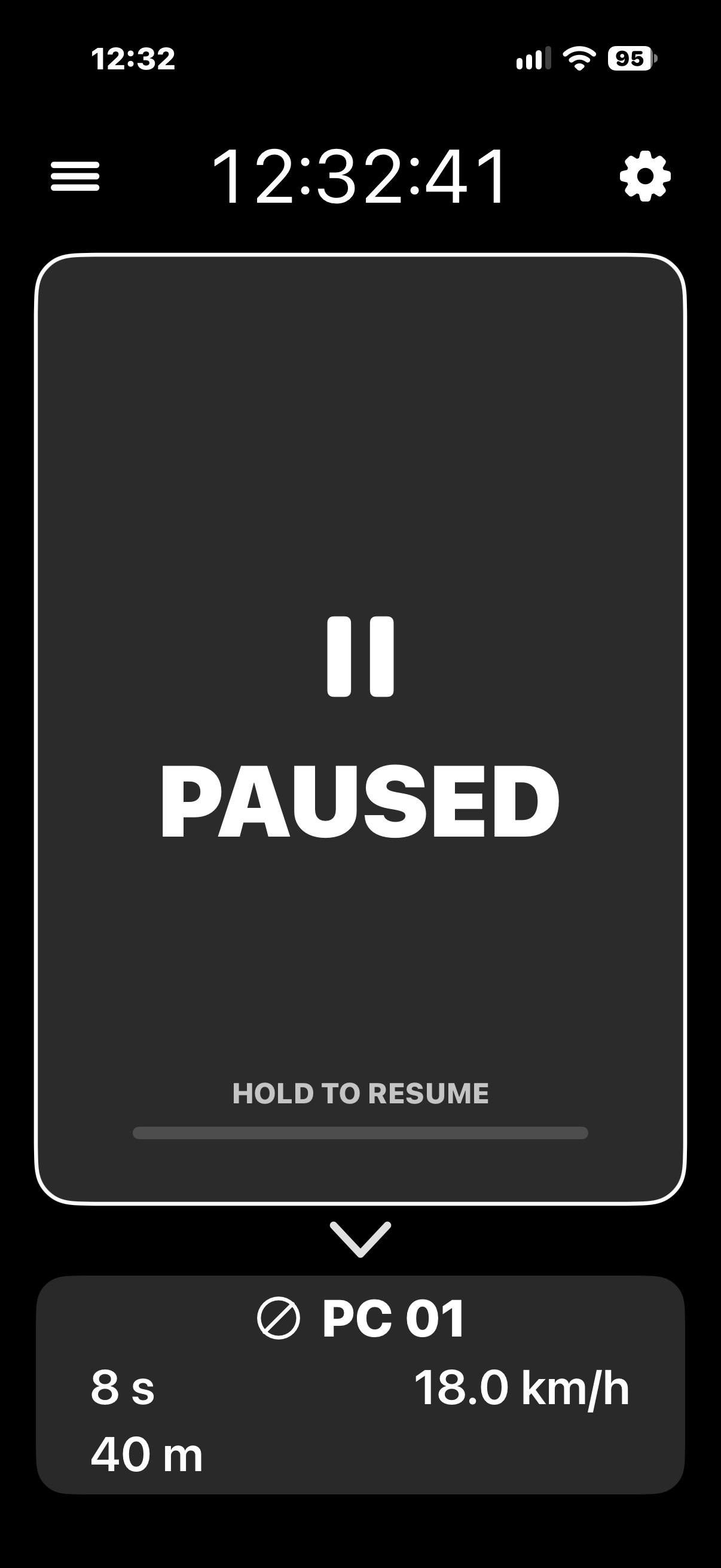
Check the next control in the bottom card.
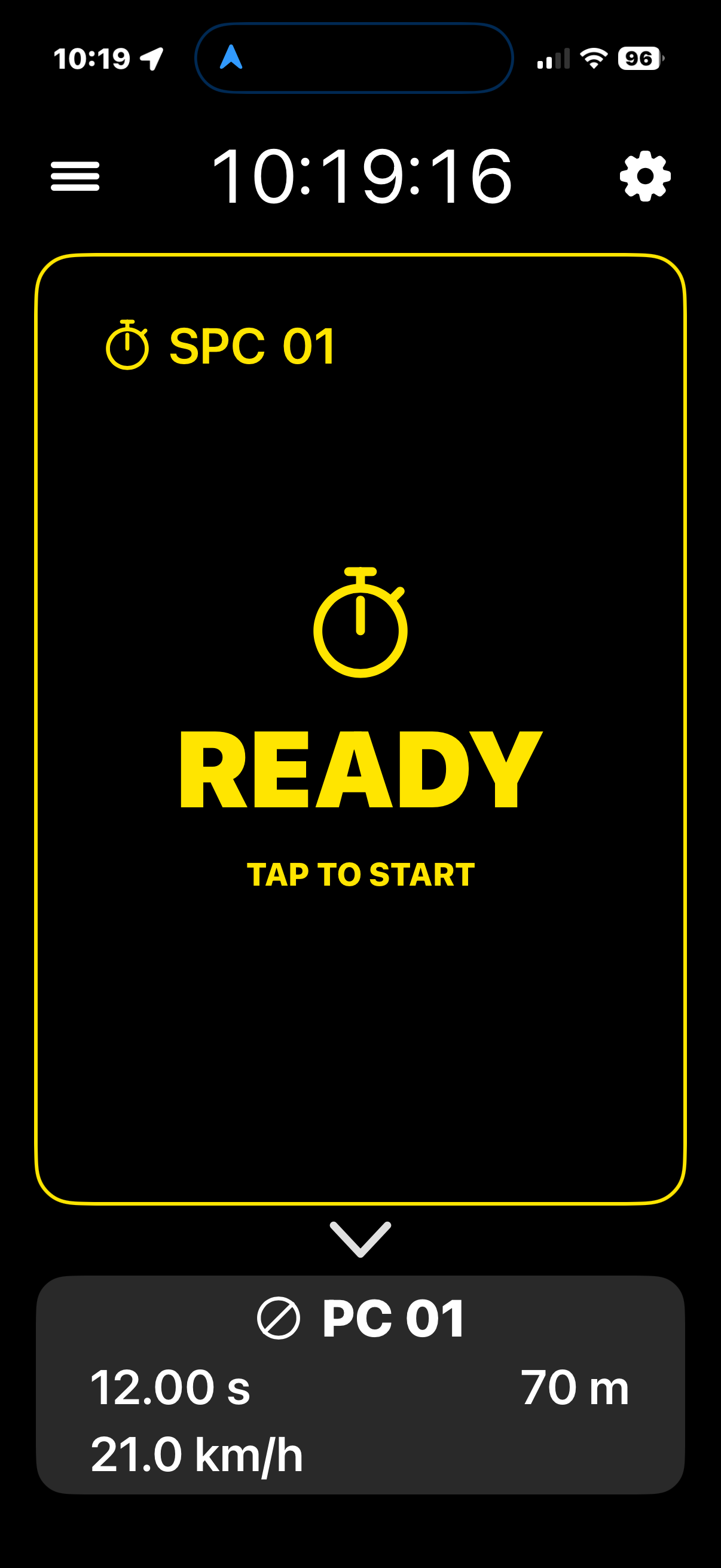
From PAUSED to READY
Check event, day and the next control in the bottom card. Hold the main card in PAUSED to enter READY, awaiting start input. PAUSED is a pre-rally/out-of-section state, not a way to pause a running PC anywhere.
Start at the SPC
If starting from an SPC, check that it is selected. The co-driver inputs at the actual start to advance to the next registered control. READY alone does not start timing.
Record a PC crossing at the line
Check remaining seconds and the next control. Zero does not advance automatically. Input at the actual line crossing records the result and advances.
Record the crossing time at a CO
CO uses a set clock time, not a PC's elapsed-time target. WINDOW means a time window; EXACT means an exact clock time. The co-driver inputs at the actual crossing.
For pre-rally time and mode settings, see CO WINDOW and EXACT setup for details.
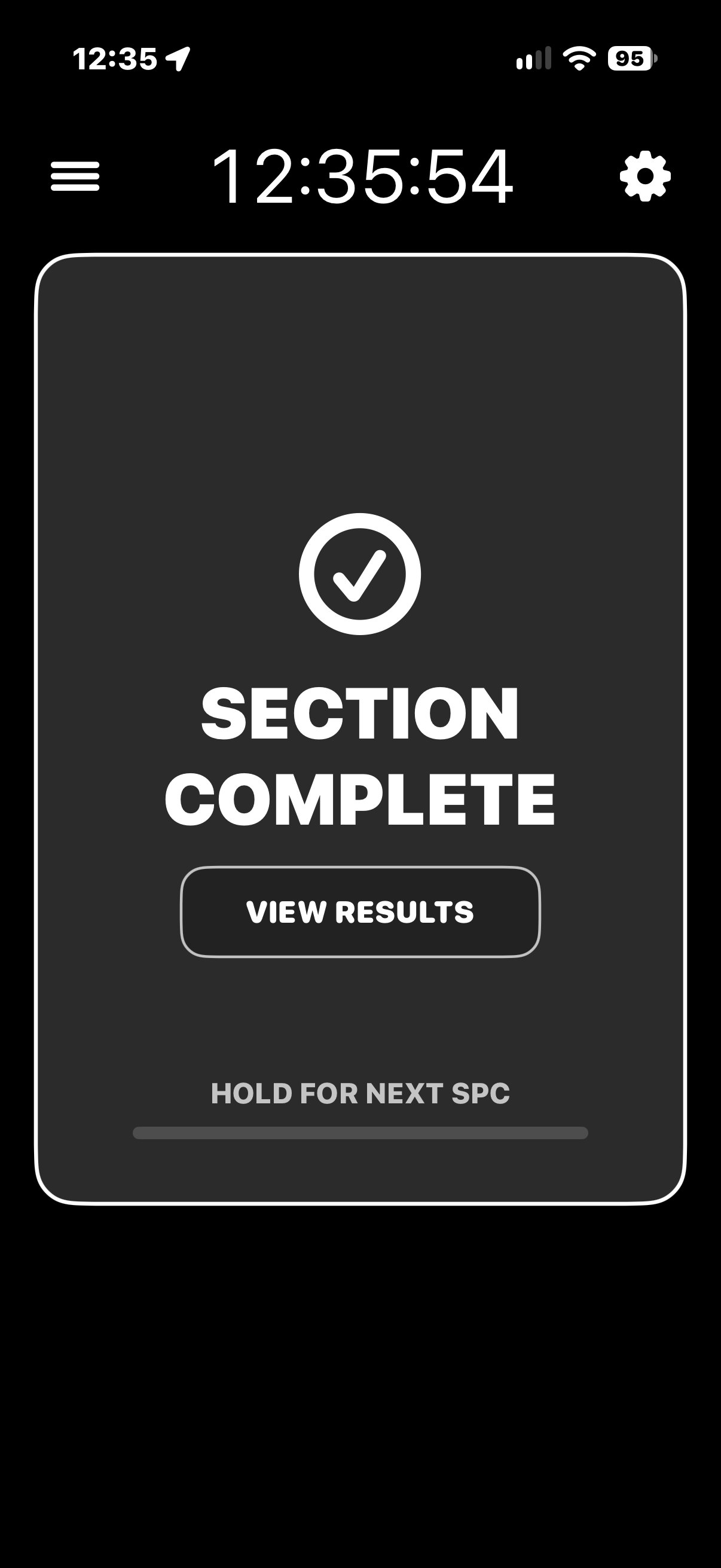
This differs from the day's FINISH.
If another section follows
SECTION COMPLETE means the section has ended. Tap VIEW RESULTS to review results.
Check the next SPC and course, then hold the main card. HOLD FOR NEXT SPC marks preparation for the next section.
An early tap and moving to a different position require different operations.
From FINISH to results and the next day
FINISH in the next-control card means the current control is the day's last one. The display alone does not finish the day: input at the actual crossing.
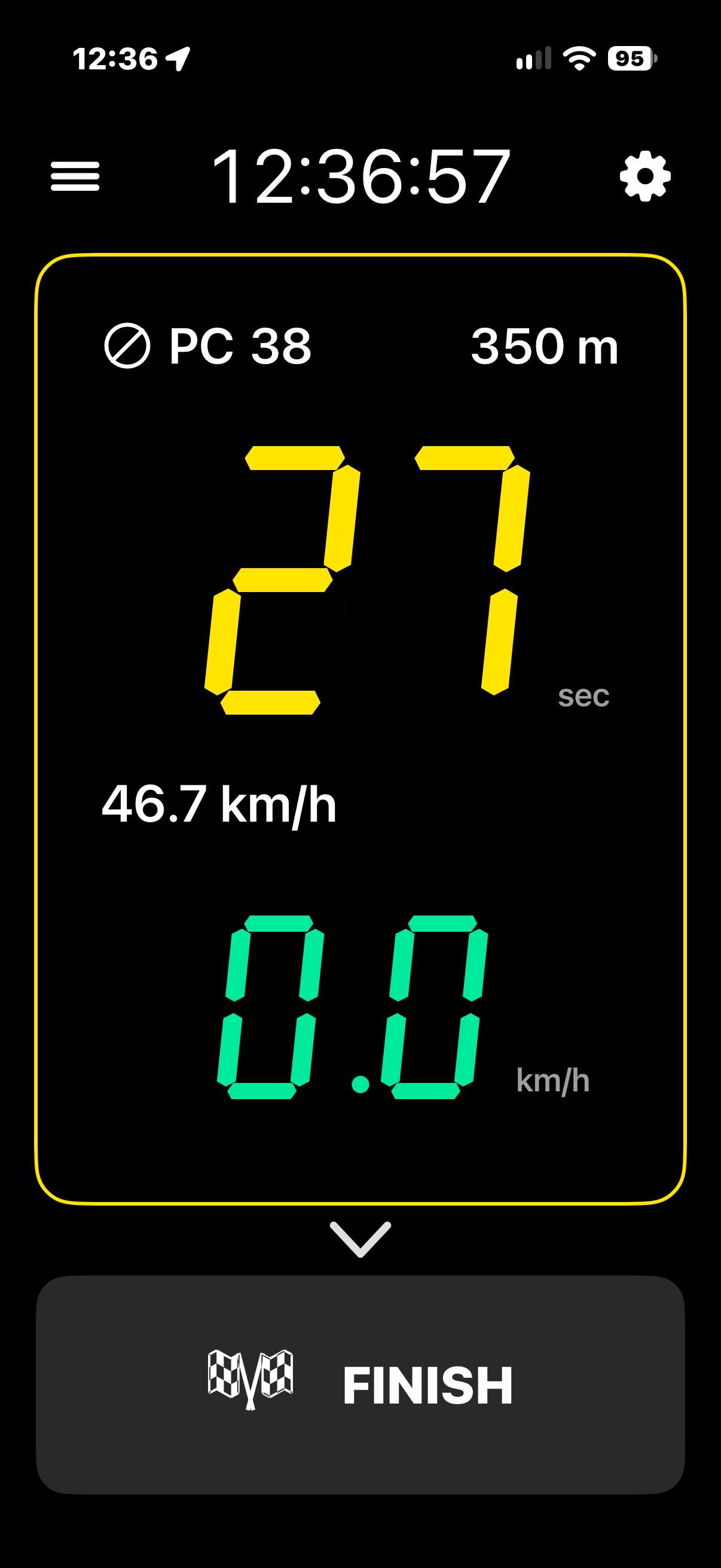
Crossing and recording the current PC completes the day.
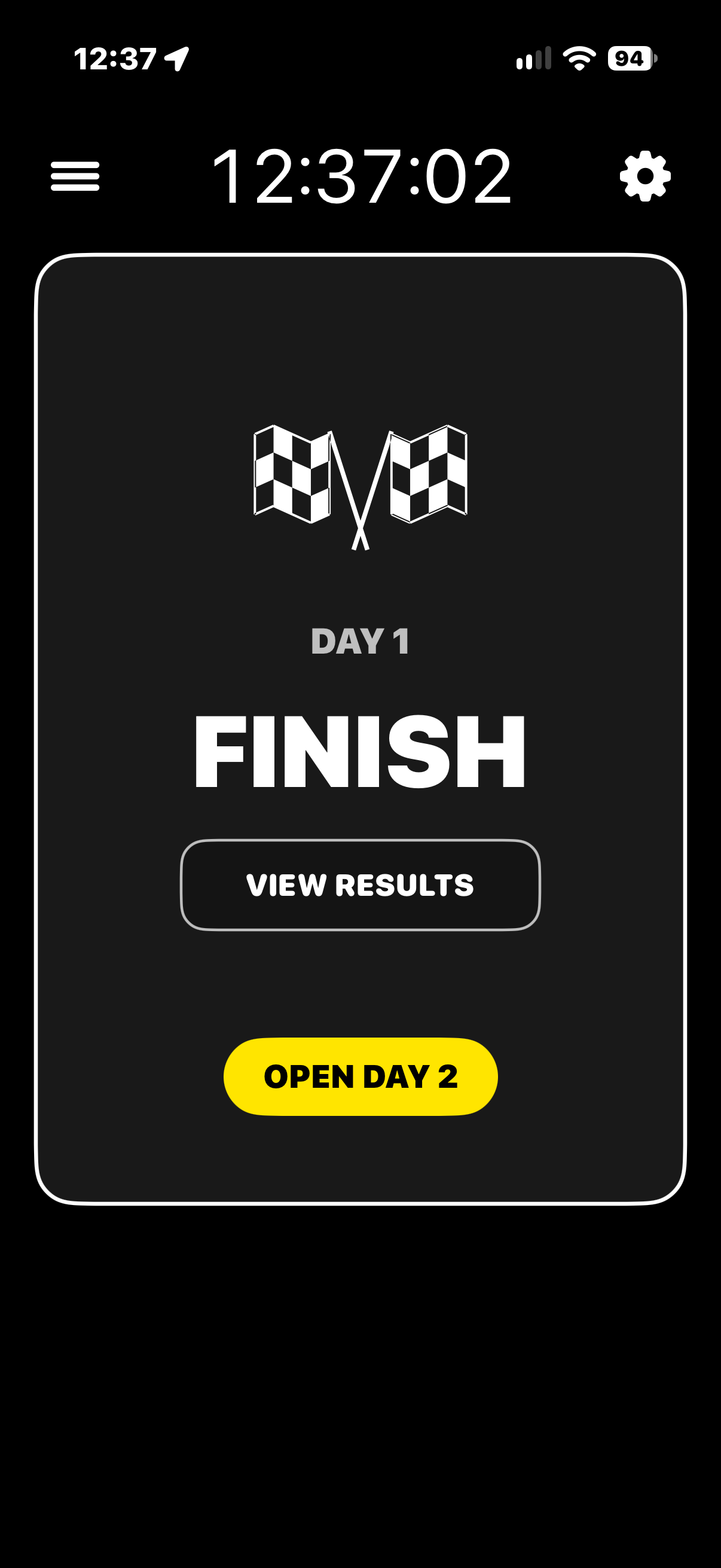
Choose to view results or open the next day.
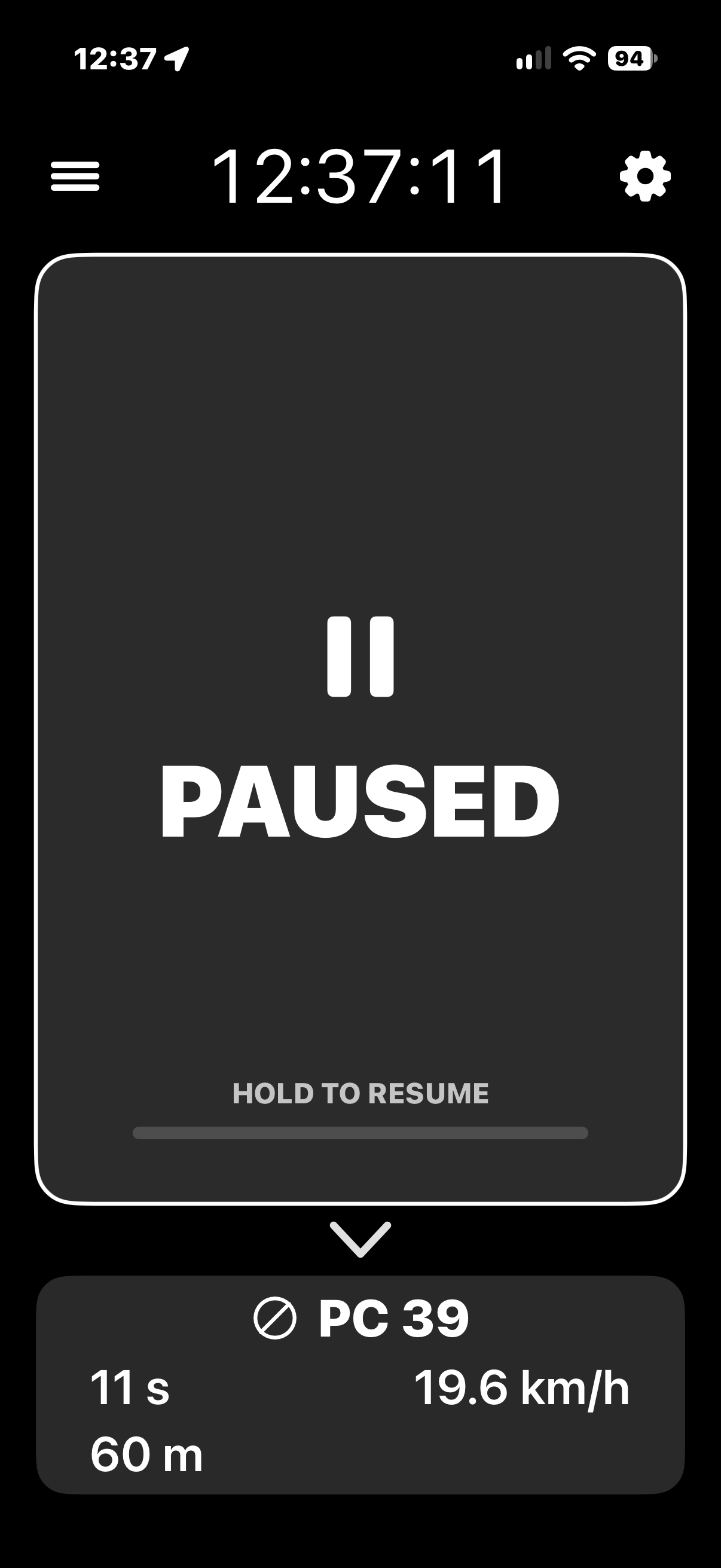
Day 2 opens in PAUSED. In this example, the next control is PC 39.
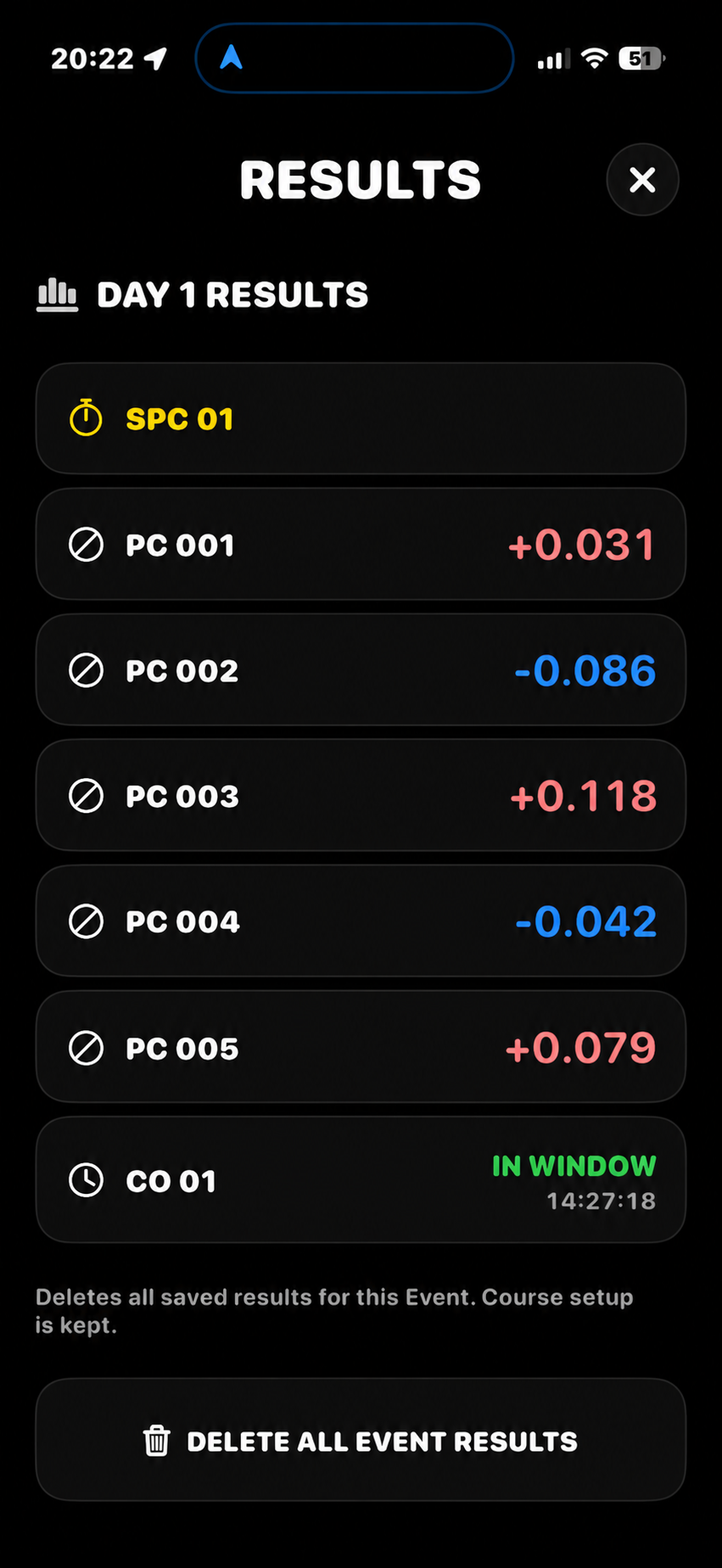
End of the day
Recording the day's last PC or CO displays FINISH. Tap VIEW RESULTS to review results.
Reading results
PC results show the time difference from target: negative is early, positive is late. CO records the time of input. These crew-entered results do not replace official timing.
Open DAY 2
If another day is registered, tap OPEN DAY 2 (or the corresponding next-day button) on FINISH. It opens in PAUSED and does not start automatically. Check the date and next control, then hold the main card to prepare.
Check operations and settings while stationary. Competition input is the co-driver's responsibility. Follow the organizer's regulations and official timing.