Create and edit events and courses
Have the roadbook ready and prepare the event, days and controls in that order.
Timer's basic operations are shared by iOS and Android. Screenshots show the iOS app in English; appearance and labels may differ by OS. Driver Monitor is available on iOS only. The app interface supports Japanese and English.
Create an event and prepare its days
Tap the settings button at the top right of the competition screen and open event/course setup. English labels include “EVENT & COURSE” and “COURSE SETUP”. Tap the event name at the top to open “EVENTS”.
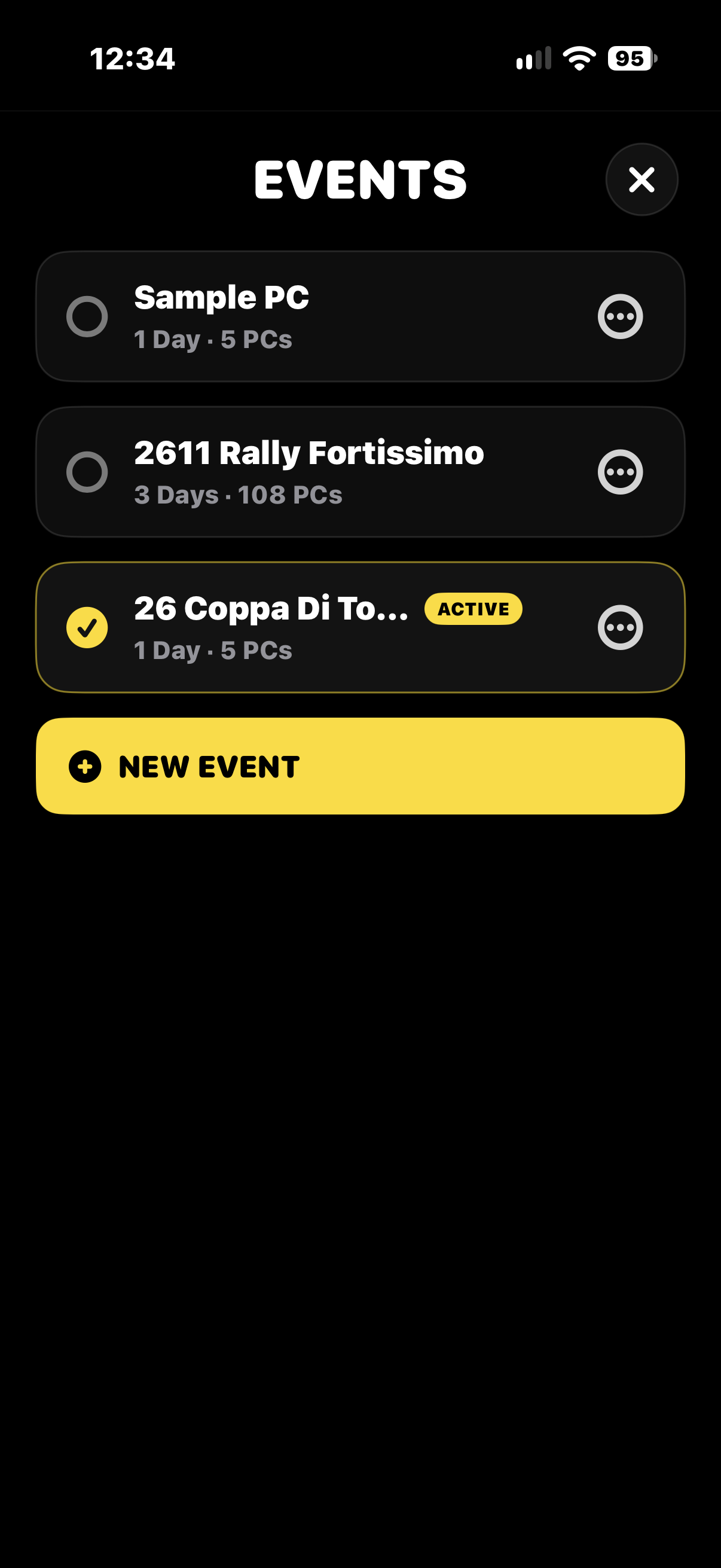
“ACTIVE” marks the selected event.
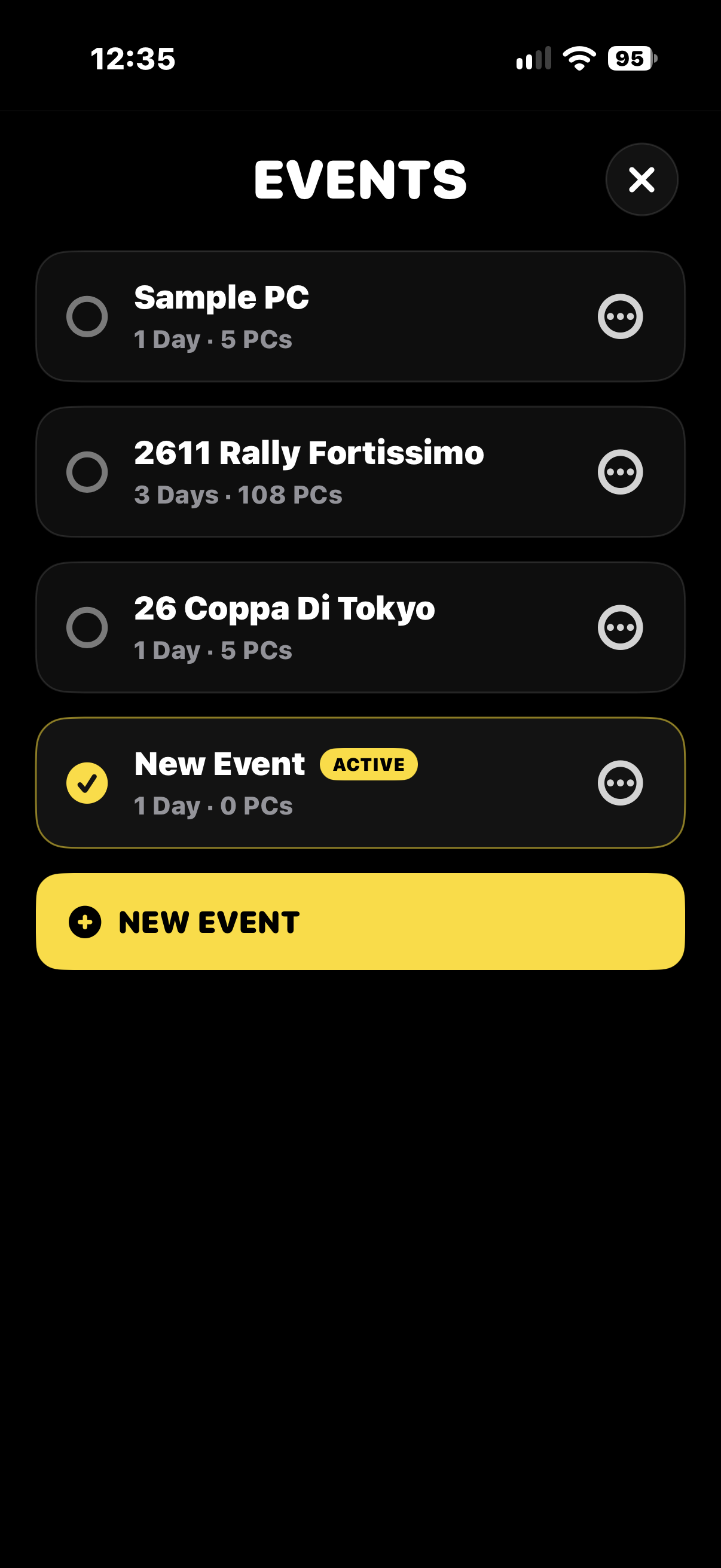
“New Event” is added to the list and selected.
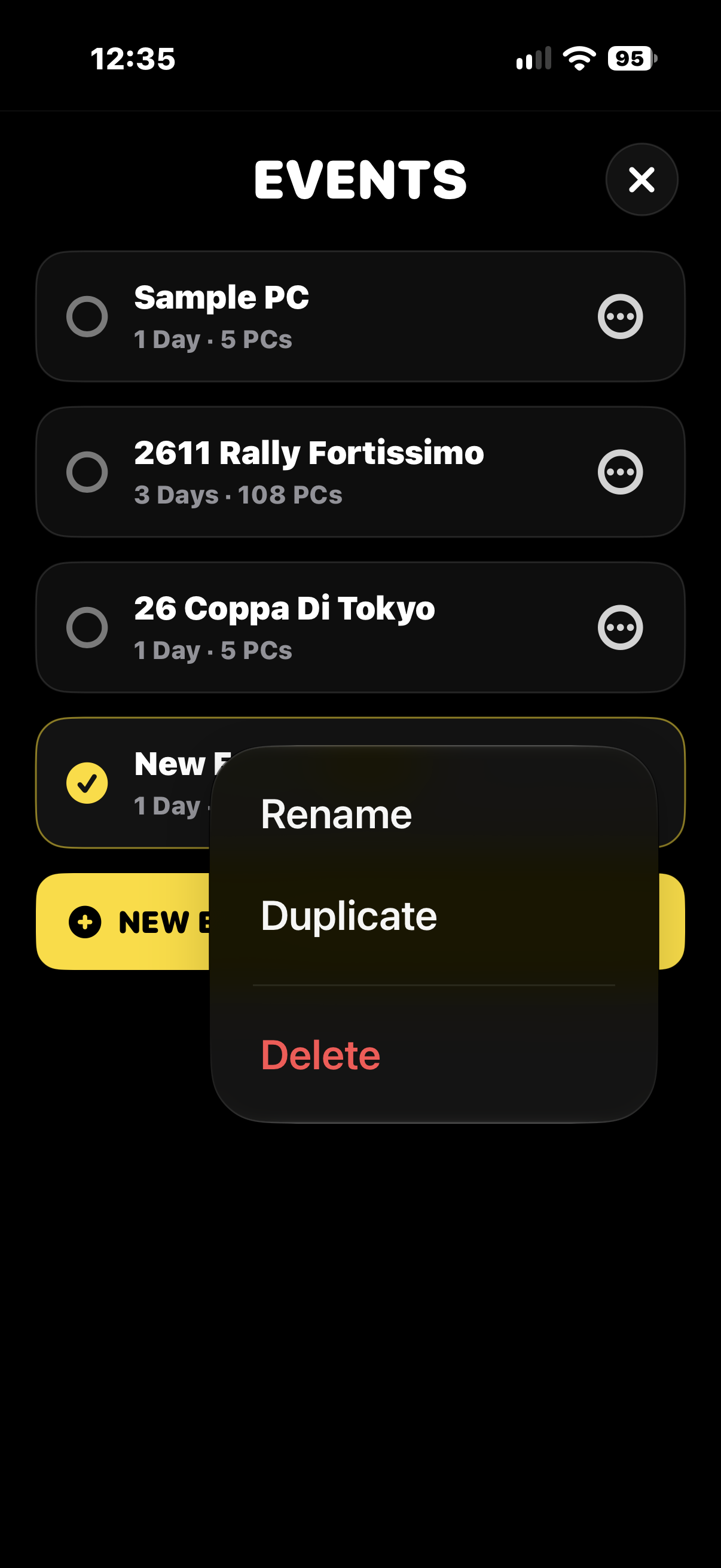
Open the event's “…” menu and select “Rename”.
Check the selected event before editing, especially when keeping practice and rally events. In the Free version, creating a new event may ask you to delete a sample event first.
Select a day and set its date
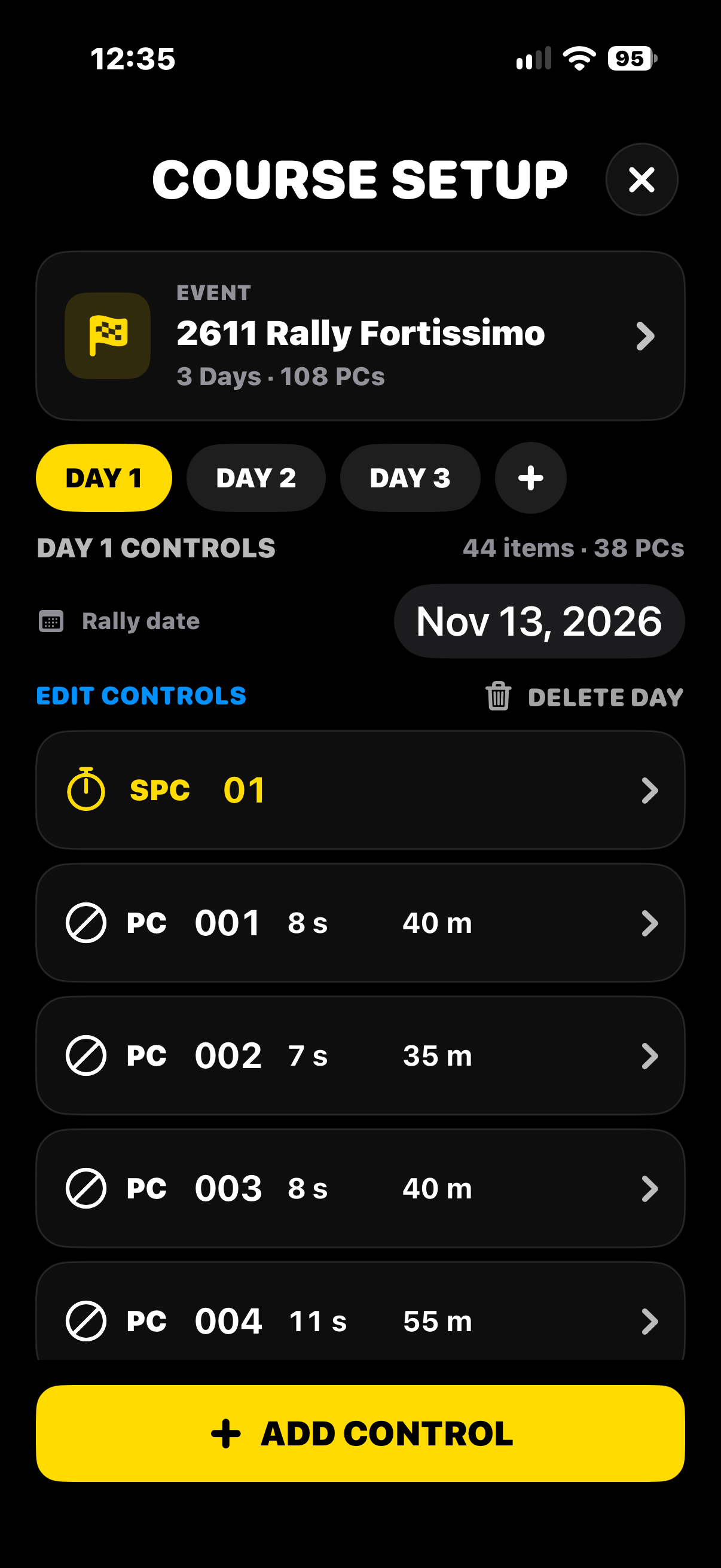
Tap the day to edit, such as “DAY 1”. Set “Rally date” and check it against the roadbook.
The Full version supports multiple days. Add a day with “+” beside the day buttons, then register that day's controls separately.
Add a control
Tap “ADD CONTROL” at the bottom and add SPCs, PCs and COs in roadbook order. The next section explains their settings.
Register SPCs, PCs and COs in roadbook order
Tap “ADD CONTROL” and choose the control type. Save it, return to the list and add the next entry.
| SPC | The start of a timed section. Register it at the start position specified by the roadbook. |
|---|---|
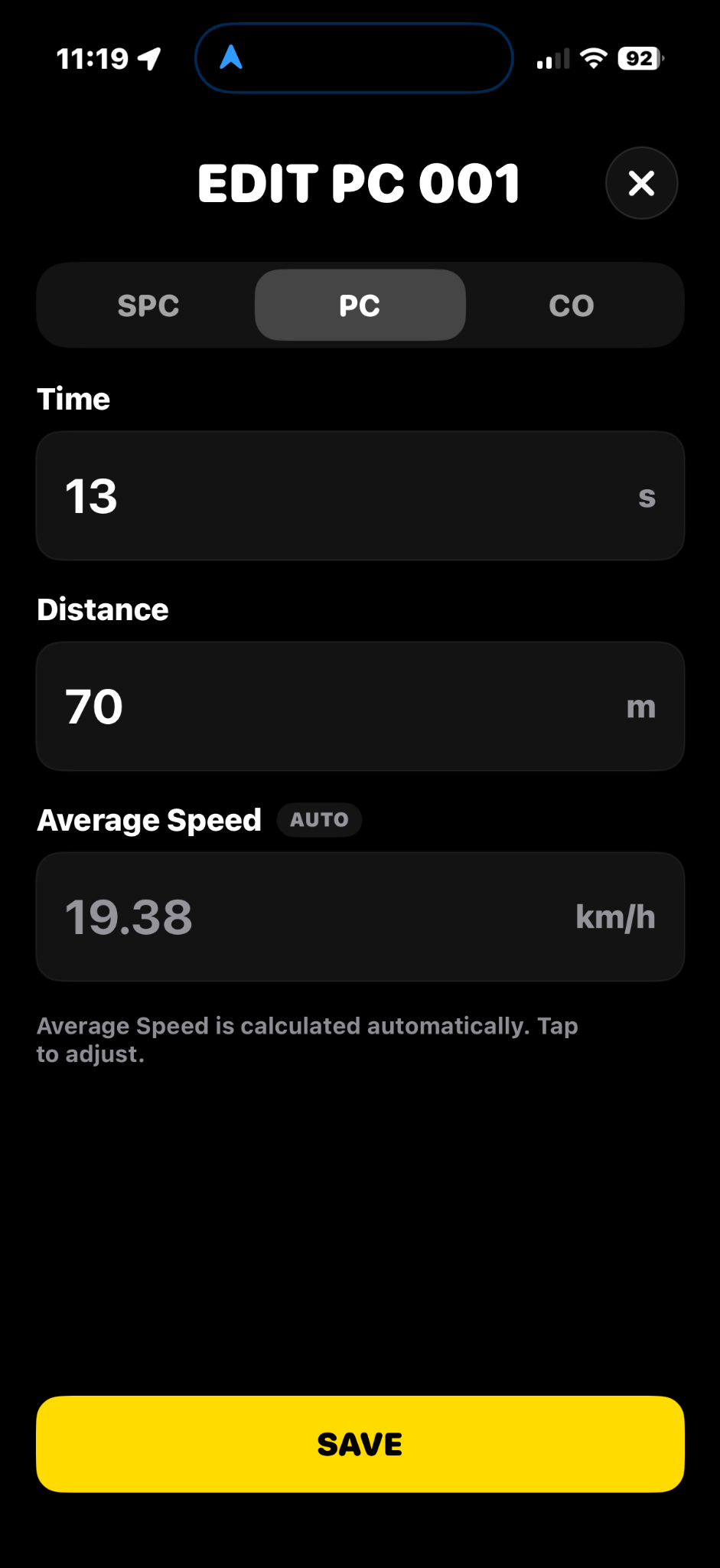
| PC | Enter the target time and distance, and check the set average speed. English labels are “Time”, “Distance” and “Average Speed”. |
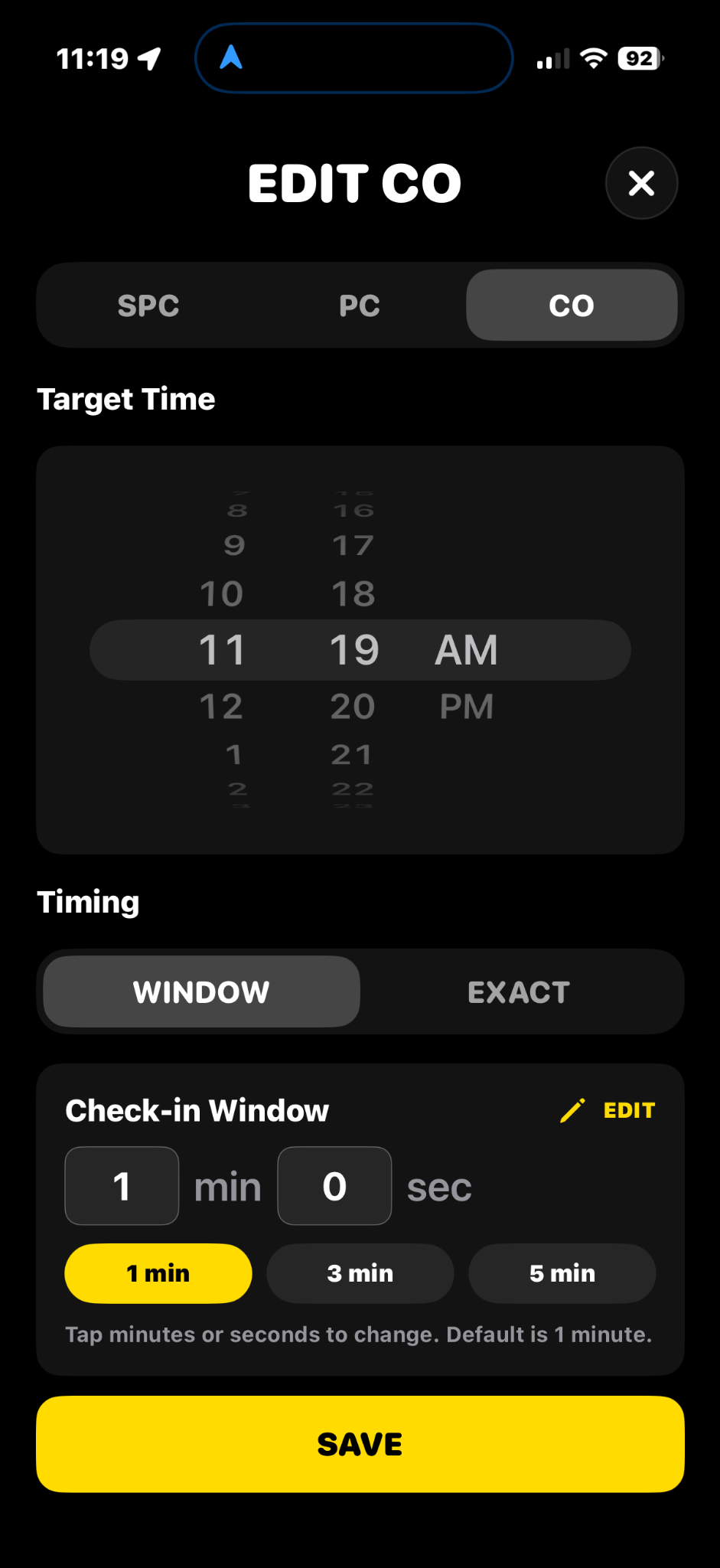
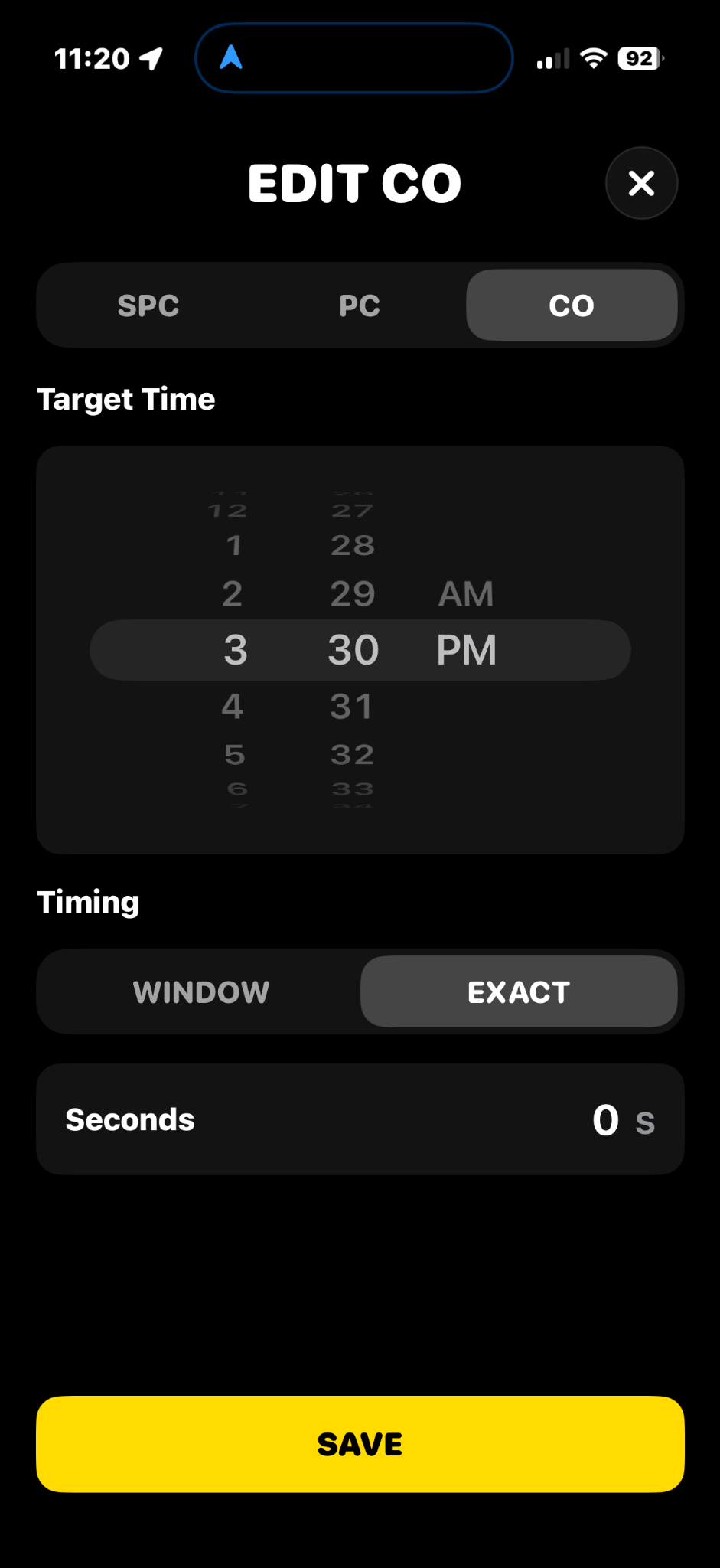
| CO | Set the target clock time and select WINDOW (time window) or EXACT (exact time). Do not confuse this with a PC's target elapsed time. |
Start with a short practice course
Start with a few controls, such as SPC → PC → PC. A PC of 40m in 8 seconds has an average speed of 18.0km/h. This is a practice example, not a real event's settings.
For consecutive PCs, follow the event roadbook's time and distance definitions. Do not confuse cumulative values from the SPC with values for each PC interval.
When adding a CO, also check the day/date and target clock time.
Edit existing entries
Open editing mode
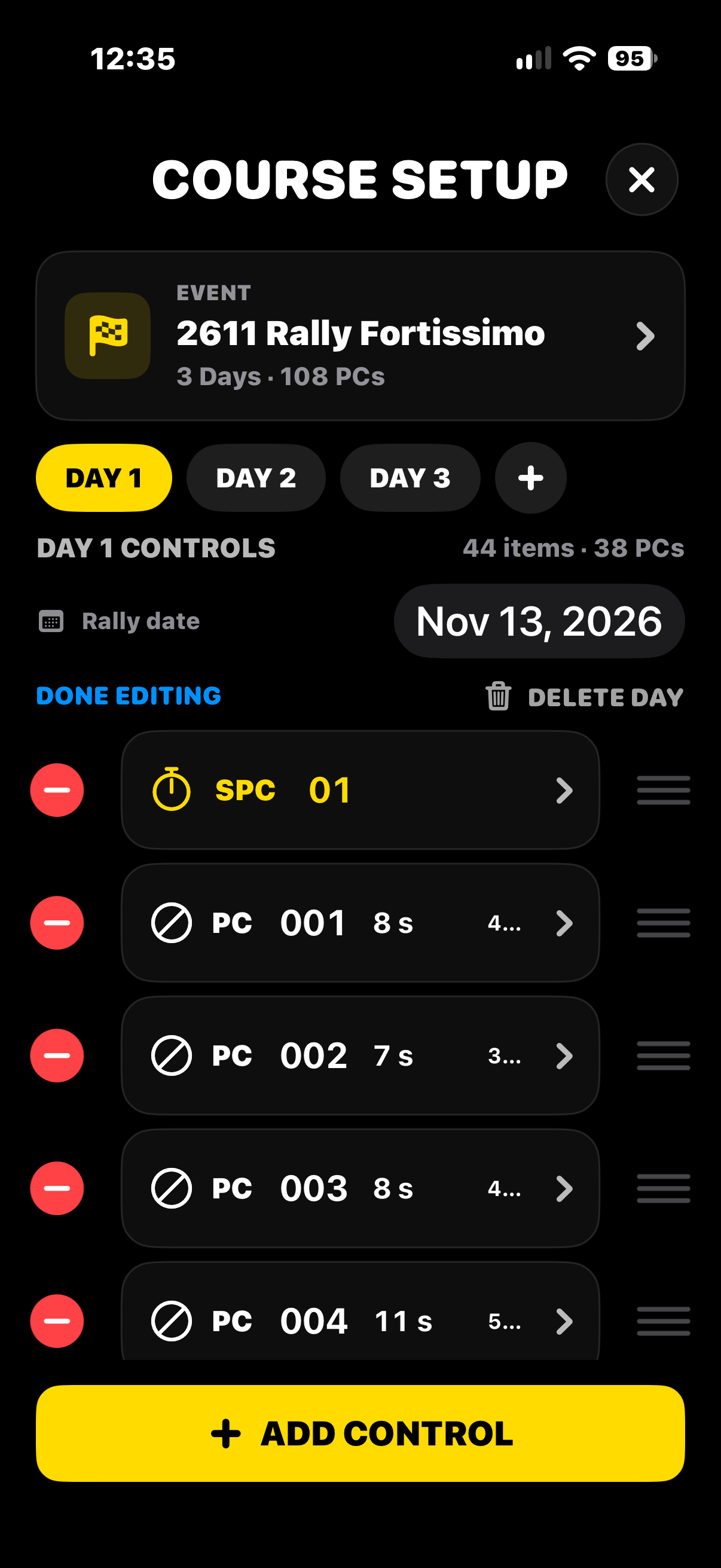
Tap “EDIT CONTROLS”. Drag a three-line handle on the right to reorder, then tap “DONE EDITING”.
Change time or distance
Tap the control and edit its settings. After reordering, compare the SPC, PC and CO sequence with the roadbook.
Check before deleting
Check the target before using a red delete button or “DELETE DAY”. Read any confirmation dialog and its deletion scope before proceeding.
| Change settings | Tap the SPC, PC or CO in the course list, edit it and save. |
|---|---|
| Change the order | Drag a handle on the right, then tap “DONE EDITING”. |
| Delete a control | Delete the intended entry and read the confirmation. Stored results for that control are also removed. |
| Rename or duplicate an event | Open the event's “…” menu and choose Rename or Duplicate. Results are not duplicated. Set dates and times again. |
| Delete a day or event | Use “DELETE DAY” in course setup or the event menu. Check the scope of course/result deletion before confirming. |
Edit courses before the rally. Follow any READY exit confirmation or editing restriction during timing. Editing is not a way to undo an incorrect crossing result.
Save and practice the complete sequence while stationary
Check event, date, control order, times, distances, average speeds and CO clock times against the roadbook. Return to the competition screen and practice from the start through results.
Check operations and settings while stationary. Competition input is the co-driver's responsibility. Follow the organizer's regulations and official timing.